View Workflow History
There are a number of ways to view workflow history.
Quick History Snapshot for documents that are currently under a workflow process
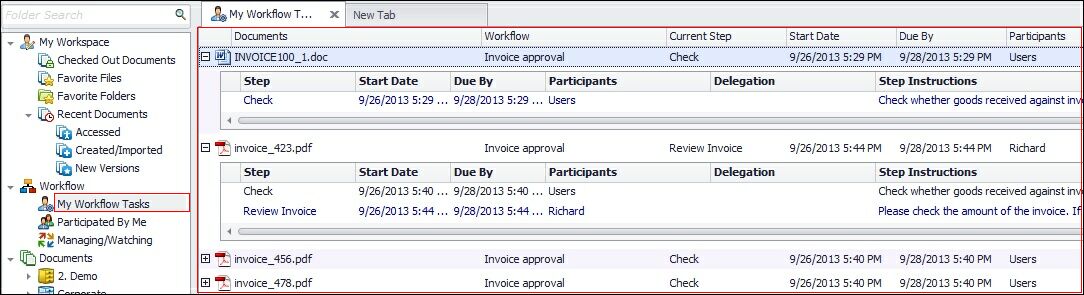
For documents that are currently under any workflow, a brief history snapshot can be seen by expanding the workflow task using the "+" button in front of the workflow task.
 |
History Dialog for documents that are under a current or completed/canceled workflow process
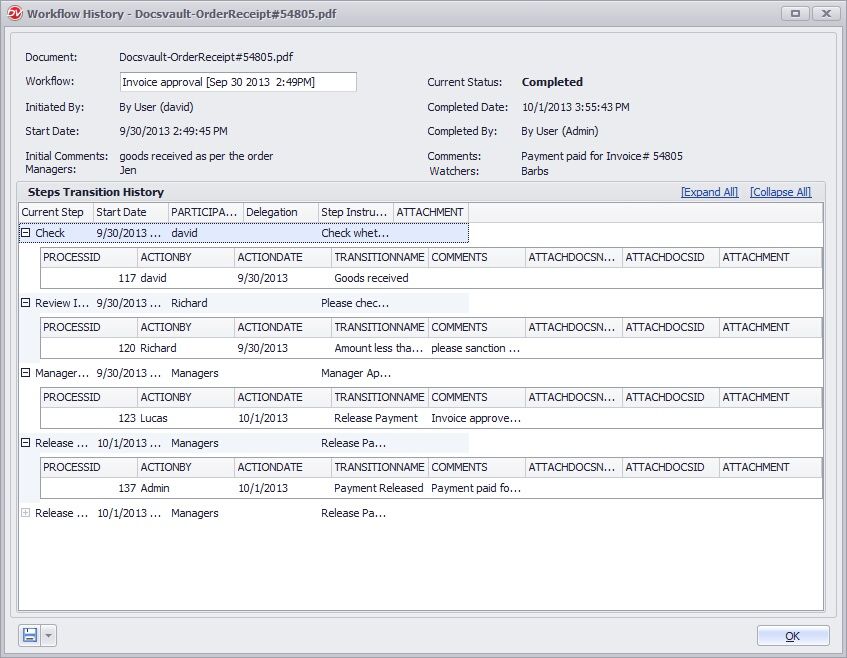
Workflow history on any particular document can also be viewed in separate history dialog by simply right clicking on a document and selecting Workflow > Workflow History. This history dialog is also available from the right click menu on any current workflow task.
If a document has undergone more than one workflows, separate instances of those workflows can be selected from the workflow drop down menu. The workflow history can also be opened in a separate report dialog for minor customizations before printing or can be exported out in file formats like xls, csv and PDF using the export button in the bottom left corner of this dialog.
 Document Workflow History |
Workflow Audit Dialog for querying workflow history throughout the repository
Administrators and authorized users can query the workflow history across the whole repository or under a subset of the repository and filter the history results using various criteria. This comprehensive Workflow Audit dialog can be accessed from both the Docsvault Server Manager dialog and the Docsvault Desktop Client.
•From the Desktop Client: By clicking the Tools > Query Workflow History menu item
•From the Docsvault Server Manager dialog: By clicking on the "History..." button under the Workflow node
|

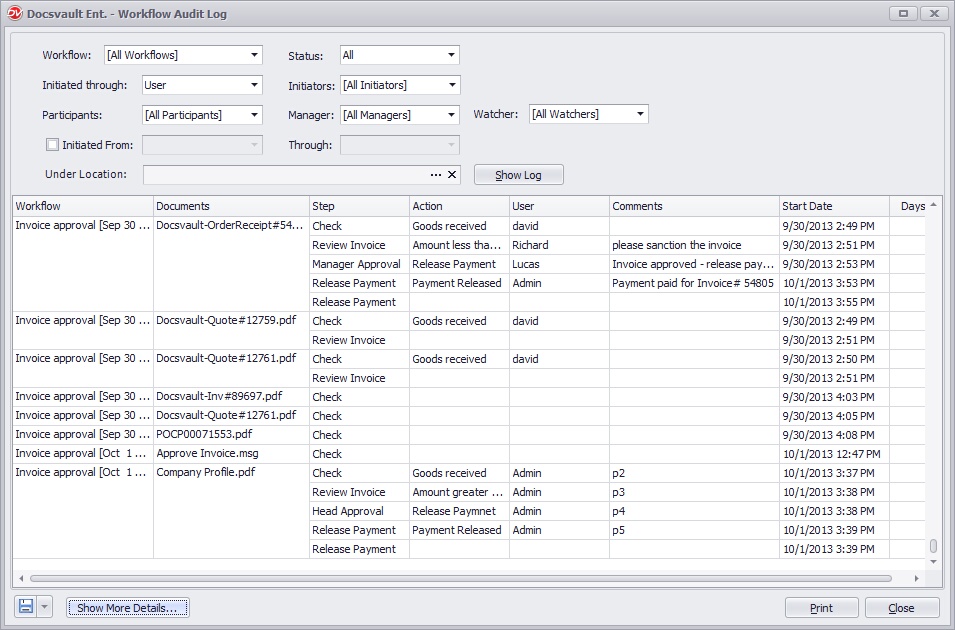 |
For further information on the Workflow Audit dialog see Workflow Audit in Server Manual.