Document Profiles
Docsvault Profile tool offers you to store additional information related to any document. They offer a cue about the document and it's contents so you can identify them instantly. Moreover, they broaden the search criteria in case you forget the name and description of files.
A 'Profile' must be assigned to documents when they are imported into Docsvault. When you select a document in the List view panel, you will find the profile and its relevant index values listed in the Profile panel on the right side of the Docsvault Explorer.
Editing Profiles
If you desire, the document profile and it's corresponding index values can be changed from the Document's Properties dialog box or from right Profile panel
If the selected Profile is set to auto name and auto file the documents, the system will automatically change it's name and detect/create a destination folder based on auto-filing rules set in Profile's Filing Template
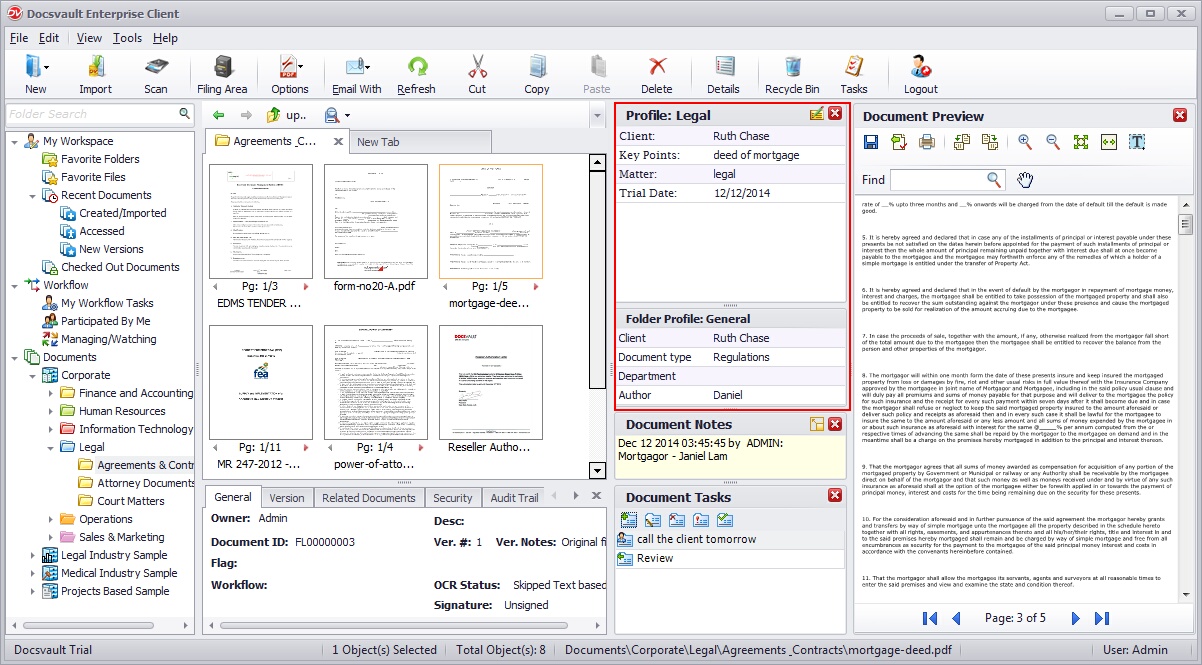 Right Panel - Profiles |
You can view the profile of top level folder (1st level) in right information panel in addition to the document's own profile values. To view the folder profile, enable ''Display profile for the first level folders...' in the properties of a cabinet.
To hide the Profiles panel, from the View menu deselect Profiles from Right Panel or click on Cross button on the Profiles panel.
•Only the Administrator or the Users with system rights of 'Create Profiles/Indexes' rights can edit and create new profiles and properties. However the index values can be changed by any user who has 'Overwrite/Delete' rights on the document.
|
