Favorites section list folders and files tagged as favorite by you for easily access. This eliminates digging to find the folder or file that might be several levels deep within the folder structure.
The Favorites Toolbar is visible right below the main icon bar at the top.
 |
You can manage the visibility of the Favorites Toolbar from View > Favorites Bar. When this toolbar is disabled the favorites items are visible as a drop down list near the folder search box in the left panel of the interface.
There are two ways to add or remove folders & files to Favorites.
Add folders and files in Favorites
•In the general file and folder listing, right-click the folder or file you want to add, and then click Add to Favorite
•In the Favorites bar of a desktop client application, click Manage Favorites icon and then add folder or files in the respective tab.
•All the favorites files will appears as a drop down list under Files and all favorites folders will appear as separate folder items.
Removing a favorite folder or file
•In the Favorites bar of a desktop client application, click Manage Favorites icon. Select the folder or file you want to remove and then click on the Remove Favorites  icon.
icon.
Note that removing a folder or a file from Favorites doesn’t delete the original folder or file — it only removes the shortcut that appears in Favorites.
Renaming a favorites item
In the desktop client application, you can even rename a folder or file name without affecting the actual folders of files at the original location.
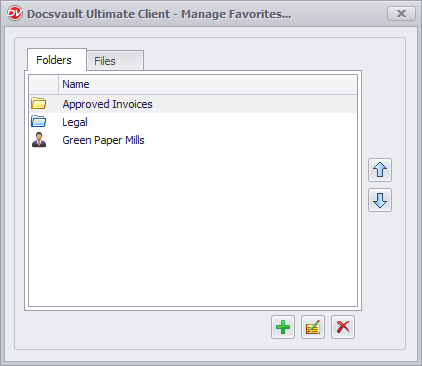 |
Arrange the order of folders and files in Favorites
In Favorites, you can arrange the folders & files in any order you want.
By default, folders and files are listed in the order you add them. To re-arrange the folders/files, select an item and then click on the up or down arrow icon to bring them to the new position in the Favorites list.