Import Options
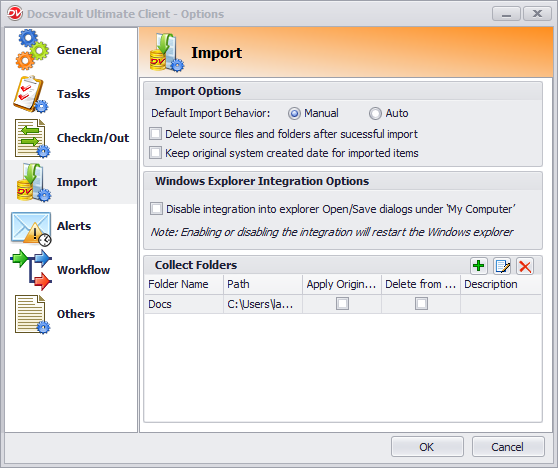
Import option enables you to set the default settings while importing burning documents into Docsvault. You can set the default behavior of the following options while importing documents into Docsvault.
Default Import Behavior:
You have an option to either set the default import behavior to Manual or profile based Auto filing.
Delete source files and folders after successful import
Enabling this option will delete the source documents after importing into Docsvault. The files are moved to the Recycle Bin.
Keeping original system created date for imported items
Selecting this option, you preserve the original system date and time (created and modified) of a file/folder while importing documents into Docsvault or else the actual date and time of import into Docsvault is applied.
 |
|
Windows Explorer Integration Options
Docsvault is seamlessly integrated into Windows Explorer ‘Open’ and ‘Save As’ dialogs. In addition to the File > Open/Save dialog integration, Docsvault also appears under ‘My Computer’ in Windows Explorer where users can drop files and folders to import them into Docsvault.
Select 'Disable integration into explorer....' to unplug the Docsvault integration into Windows Explorer.
Collect Folders
You can set up a collect folders on your machine. When new documents are created in or copied into these folders, the service will display the documents into the filing area from where it can be filed into designated Docsvault folders easily. To learn how to add a collect folder, click here.