Field Rules
Docsvault allows you to define rules that control the visibility and value of different fields and controls on a form. This approach allows you to create powerful and interactive forms.
To create Field Rules for your form, select Field Rules tab from the Options page.
This section lets you configure rules that specify the behavior of your eform and its' form fields. A separate rule can be configured for each of the choice available within the drop down field. You can put multiple conditions to create complex logical expressions.
• For each rule, specify when to apply the rule in your eform.
oAny - The rule is applied when any one of the conditions are met
oAll - The rule is applied when any one of the conditions are met
•Select a field from the drop list. The drop down will list all the form fields used in your form.
•Specify the operator to used to compare the input values. The operators available are different for different form field types.
•Enter the value to compare. You have an option to add multiple conditions. Click + icon to add more than one condition.
•Then specify the action to take when the rule condition is met.
oHide or Show a field
oSet a value for some other field
•Add Rule - Lets you add more rules
Example 1:
This form has a drop list named 'Country' and a pre-formatted control 'Social Security Number'. This field is visible by default and if the user selects country other than 'United States' then to hide 'Social Security Number'
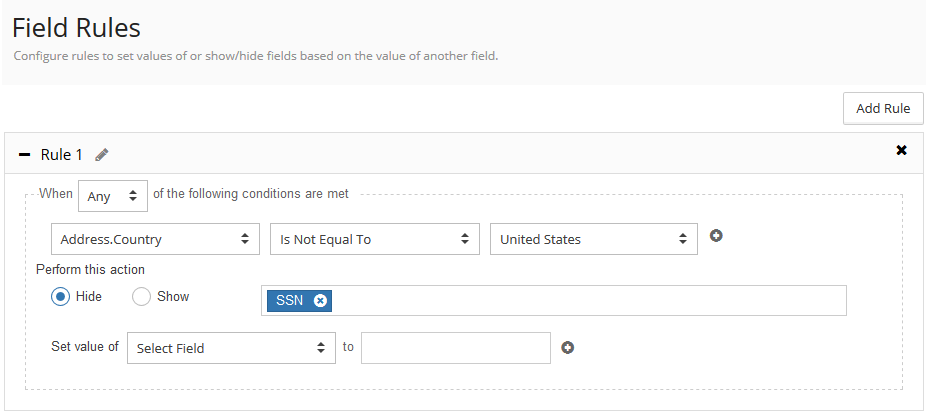 |
If "Country" drop list field Is Not Equal To "United States"
Then
To hide "Social Security Number" field
Example 2:
Displaying the "Discount code" with set value if the "Product" is "Shampoo" and the "Quantity" ordered is more than 10
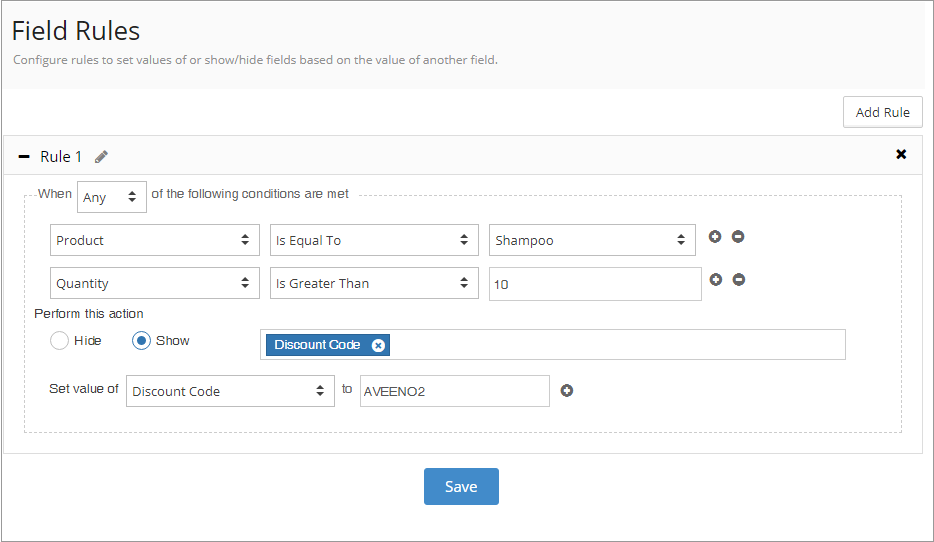 |
If "Product" drop list field Is Equal to "Shampoo"
AND
If "Quantity" Is Greater than "10"
Then
To show 'Discount Code' field
AND
Set value of "Discount Code" to "AVEENO2"