Note: This feature is available only in Docsvault Enterprise & Ultimate Editions
|
Docsvault Document Preview supports all popular document types (including Word, Excel, PDF, Emails, Graphic & Engineering Drawings, DICOM images) without having any native software installed on the client machine.
Document Preview has many benefits that increase your productivity and efficiency:
•No Installation - open documents and get a full preview without native software
•Supports popular document formats
•Content identification is easy - thanks to graphic previews and highlighted terms of visual searches
•Navigation becomes effortless - previews of all major documents and content types
•Additional format specific functionality
•PDF export for all file types
Viewing the contents of a document
Document Preview allows you to open, read and work with multiple file formats. It comes with several other functionality to change the way the document is displayed. A user cannot edit the contents of the files from the Preview panel.
Users with minimum 'Preview' rights on the document is allowed to view the content in the preview panel.
•
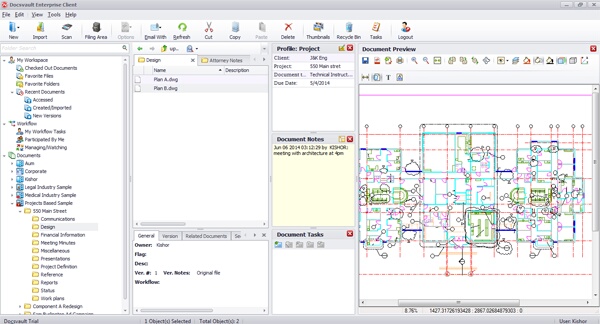 Document Previews |
You can turn on/off the preview panel in the desktop client from View > Document Preview menu. And in web client, you can turn on/off the preview panel from Options > General.
Toolbar
The Document Preview contains groups of controls. The number of buttons that you will see will vary depending on the type of documents viewed.
Save - To export and save the document to any location on the hard drive. User with minimum 'Export' rights will be able to save the
document outside Docsvault.
Export to PDF - To export the document in PDF format
Expand PDF Viewer - This feature is available in Web Client application only. Click on  to view PDF files in a new tab of a web browser. This built-in PDF viewer allows you to view thumbnails, change the size of the document or view it in fullscreen mode,browse the file using page up & down button or skip directly to a page. You can also print and download the PDF file to your computer.
Note: Users with "Read" rights can view and download the files.
Check Out - To check out the document for editing
Print - To print the document
Zoom In - To increase the magnification of the document
Zoom Out - To decrease the magnification of the document
Fit Width - To fit the document at its full wideness
Rotate Right - To rotate the selected page to 90 degree right
Rotate Left - To rotate the selected page to 90 degree left
Engineering Drawing Controls:
Rotate 10 degree - To rotate a drawing counter clockwise by 10 degree
Enable 3D Orbit Tool - To enable free 3D rotation mode of the drawing with mouse
3D Orbit Views - To view 3D drawing in different direction. The menu also allows you to change the viewpoint of your drawing in real-time: front view, back view, top view, bottom view, left view, right view, south west isometric view, south east isometric view, north west isometric view and north east isometric view.
There is a very quick and easy way to 3D orbit your drawing object. Drag to left or right to rotate the object around the XY plane, and drag up or down to rotate the model along the Z axis. Drag diagonally to create isometric view.
Show Layers - To view the list of multiple layers of a drawing
Color Background - To view the drawing in color background
White Background - To view the drawing in white background
Black Background - To view the drawing in black background
Color Drawing - To view the drawing in color. Note: The drawing has to be originally drawn in color for a colored view.
Black Drawing - To view the drawing in black color
Show/Hide Axis - To control the display of the axis
Dimension Show/Hide - To view/hide dimensions of a drawing
Text - To view/hide the text written in the drawing
SHX Text - To support fonts that are written in the drawing
On/Off Double Buffering - To render the drawing effectively
Find - To search any content of the document.
Digital Imaging and Communications (DICOM) Controls:
Enable/Disable Window leveling: To adjust window level (brightness or contrast) of an image. Click the toggle 'Window leveling' button to
enable/disable window leveling option. Next press the left mouse button over the image and drag the mouse to change brightness (window level - WL), or contrast (window width -WW):
▪UP to increase brightness (window level goes down)
▪DOWN to decrease brightness (window level goes up)
▪LEFT to increase contrast (window width decreases)
▪RIGHT to decrease contrast (window width increases)
Restore Default: To restore the default settings of window level
Animate: Animate (cine mode) is available for multiframe DICOM files only. Animate actually is the sequential playback of the frames contained in a multiframe DICOM file.
Properties: To view the DICOM tags associated with the image displayed.
File Formats supported in Viewer:
Docsvault supports following documents and files types in previewer:
•Microsoft Word (doc, docx, rtf, txt, html, htm, mht, xml, odt, epub,log,ini, sql, config)
•Microsoft Excel (xls,xlsx,xlsm,csv)
•AutocAd Drawing (dwg/dxe (up to 2015 version), hpgl/hpgl2/plt, cgm, gbr,wmf/emf)
•PDF & Images (pdf, tiff, tif, pdf, gif, jpg, jpeg, jpe, png, wmf, bmp, wbmp, ico, cur, jbg, dds, koa, pcx, pnm, hdr, jng, exr, dds, ppm, sgi, pbm, pgm, pfm, xbm, xmp, iff, tga, j2k,jbig2, jp2, jfif, jpe, jb2)
•Email (msg,eml)
•DICOM (dcm)
•Document Preview in web application support all the above file format except AutoCAD drawing files.
|
