|
Editing Vector Graphics |

  
|
|
Editing Vector Graphics |
|
|
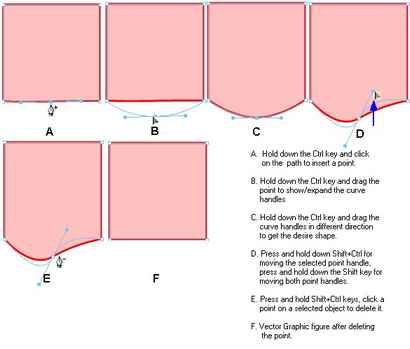
Editing Vector Graphics Vector graphics use mathematical relationships between points and the paths connecting them to describe an image. Vector image are easier to modify compare to raster image. You can add points to a path and delete points from a path. Adding points to a path gives you control over a specific segment within the path. Deleting points from the path reshape it or simplifies editing. To insert a point on a selected path
To delete a point from a selected path segment
To draw curved path segments, you click and drag as you plot points. As you draw, the current point shows point handles. All points on all vector objects have point handles. These handles are visible only on curve points.
To draw an object with curved points
Page url: http://www.docsvault.com/online-help/professional/index.html?insert_vector_graphics.html |