Folder Section
It is important to be aware of your organization overall folder structure. The main purpose of folders is to organize content to match the expected functionality of the data in the organization. The Folder Section setting should be considered carefully as part of an overall folder structure or even after a folder structure is established.
In Docsvault, you can create and manage Folder Sections consistently by configuring it for each cabinet/folder that are created. Folder Sections can further be customized by selecting the unique color for each section which appears as the tabs in the folder. There is no limit on the number of documents that can exist in a Folder Sections. Sub-folders are also allowed in Folder Sections.
To create the Folder Sections
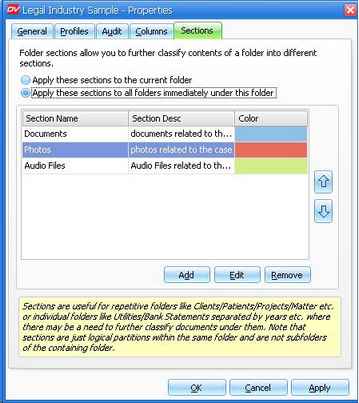
| • | In Properties dialog box, go to the Section tab. |
| • | Select Apply these section to the current folder to create the sections to the current folder selected. |
| • | Select Apply these sections to all folders immediately under this folder to create the sections from the next level. The sections will not be created on the current selected folder. |
| • | Click on the Add button to add a section. Enter the Section name and description. |
| • | Select the Color to colors every section tab in a unique color and makes them easy to distinguish while enhancing the appeal of the Docsvault interface. |
| • | Select the Apply button to update the changes and OK to close the window. |
|
Folder Section
|

Assigning Sections
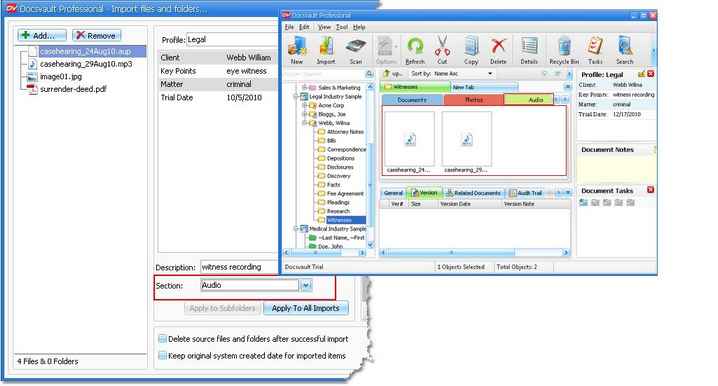
For example: In Legal Industry, one can have multiple logical sections for their cases. For instance in a single folder 'Witnesses' , can have documents, audio, photos as sections. Folder Sections provide the user with the ability to manage those sets of documents as a single collection in a folder.
|
|
Folder Section