Watermarks
 Watermarks are background texts or images that display either behind or in front a document. They are used to add the logo or indicate the document status. You can add text based watermarks to your document, remove or edit them.
Note: A Watermarks are the integrated into pages as a fixed elements.
To add, remove or edit the Watermarks on the Main Menu choose Documents > Watermarks >Add, Remove All or Manage.
To insert any information for creating a watermarks
•Choose the  Add Watermarks dialogue box
• Type text into appropriate boxes.
You can preview watermarks before applying.
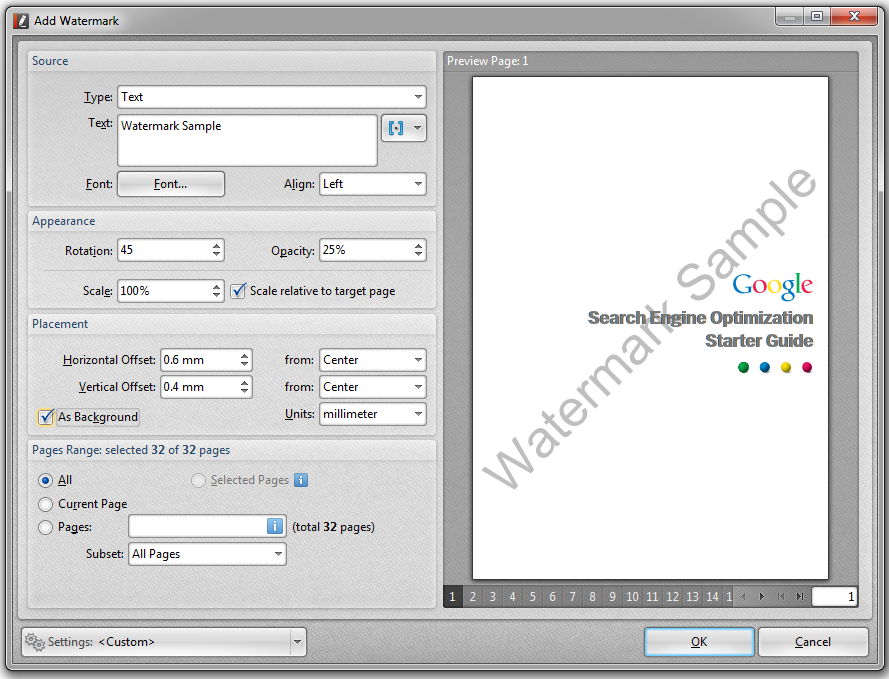 |
Source group box shows the settings for creating of a watermark.
The Type field provides options to insert text or file .
The Text field allows to type or insert text for Watermark. This text will be displayed on the page.
The Macros button  opens a drop list of file name macros that you can use to automatically generate watermarks names.
All other options are self-explanatory.
Setting <Custom> drop-menu contains default settings as a templates watermarks.

A Manage button allows you to create a copy of a existing template by clicking a Clone button, and then to edit information for creating a new template of watermark.
Save Current Settings button allows you to save the current settings to use them in the future.