Docsvault comes with many built in reports that give administrators information about the usage by document version, extension, users, etc. Every time a document is checked out of the repository, or changed, that activity is tracked and recorded. These reports are accessible to administrators group members only.
•Click on the Reports icon on the tool bar
•Select File Counts / File Lists. Your predefined reports will be listed in the sub menu.
File Counts:
New Files added by Cabinet
View the number of new files added to each cabinet over a specific time period. You can choose from predefined time ranges or specify custom dates.
New Files added by User
See how many new files each user added within a chosen time frame. The report breaks down file counts by document type for a detailed overview.
Total Files by Profile
Get a comprehensive overview of your document types. This report shows the total number of files in the repository, categorized by profile.
Number of Files by Extension:
See how many files of each type (e.g., .pdf, .docx) are in your repository.
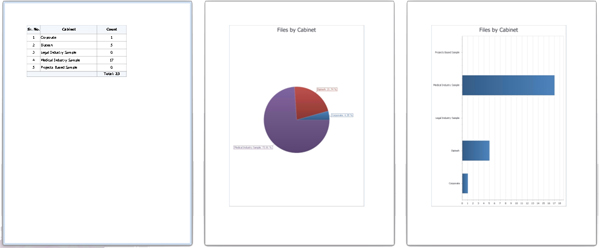
Number of Files by Cabinet:
View the number of files stored in each cabinet.
Number of Files owned by User:
Check the number of files owned by each user.
Number of Files checked out by User:
See number of files checked out by each user.
OCR Summary:
Monitor the progress of your OCR process by viewing a summary of the number of files in different OCR stages.
 |
File Lists:
Checked Out files by user:
This report will list all the documents checked out by selected user. The list will display file name and their location within the repository.
Files List by Assigned Profile:
This report will list all the files that are assigned the selected profile. The list will display the file name, location and index values of the profile.
Files List Owned by User:
This report will list the files owned by the User
Files with versions:
This report will list the files with versions greater than specified number of versions.
Reports are available in tabular form which provide accurate count and document list based on extension, cabinet, profile, ownership, OCR status, and more. File Counts reports are also represented in bar and pie chart formats. You can view, print and export all the reports in different file formats (pdf, html, rtf, xlxs, csv, text or image file format).