|
Audit logging can be configured to record all actions for all files and folders or selective actions on specified documents.
Querying Audit Trail by Dates
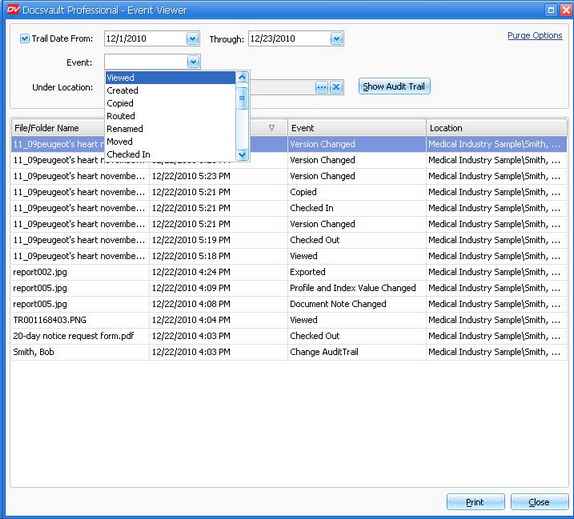
| • | On the Tools menu, click onto display the Event viewer dialog box. |
| • | To query for events occurring between 'specific dates', click the check box next to Trail Date From to set the criteria date wise. |
| • | Now click on Show Audit Trail button to get the audit trail result for selected dates. |
| • | If you want to query for 'all dates till today', deselect the check box. |
|
Audit Trail Results
|
Querying Audit Trail by Events
To query for action(s) done against the files.
| • | On the Tools menu, click onto display the Event viewer dialog box. |
| • | From the drop down list next to Events, select the particular event or select 'Show All' to view all the actions against all the files. |
| • | Now click on Show Audit Trail button. |
To get a hard copy of audit trail click on Print.
Purge Option
| • | To permanently remove old and unneeded Audit Log data, click on the Purge Option link. |
| • | In the Audit Log Purge Options dialog box, select the date. This will delete all events that were logged before the specified date. |
 Note: Note:
| • | Deleting of cabinets is also audited irrespective of the audit trail setting for cabinets. |
| • | You can also sort the listing by clicking on a column header in ascending and descending order. |
| • | You can get different types of reports based on the combinations set for the query. |
| • | To monitor the actions against a particular document, from the bottom panel of List view panel select Audit Trail. |
|
Page url:
http://www.docsvault.com/online-help/professional/index.html?querying_audit_trail.html
|


