|
CD/DVD Burning & Audit Trail Query |

  
|
|
CD/DVD Burning & Audit Trail Query |
|
|
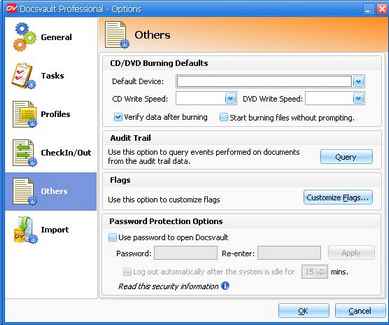
Others option enables you to set the default settings for burning documents to CD/DVD media and query the document event audit log.
CD/DVD burning default settings The following will allow you to set options that will be enabled by default every time the CD/DVD burning dialog is displayed.
Audit Trial Audit Trial Query is used to determine all the actions taken on a particular document during the specified period, or can be tailored to record specific actions done by the user against the documents. It provides the user with the ability to filter data to create customized views of the data contained in the log. For more information, see Querying Audit Trial.
Flags If you have volume of data, you can keep from losing track of important documents by flagging them. Flagging an item (cabinet, folder or file) adds a flag icon to it. You can create custom flag such as Important, Pending, Urgent to remind yourself to follow up on an issue or to indicate a request for someone else. This feature lets you create custom flags and thereby making it quicker to flag your files. (Select the file in the list view panel, right-click it and select Flag for follow up). You can also find the flagged files automatically using the Flag criteria in Search Folders. For more information, see Customize Flags.
Password Protection Options Preventing access to Docsvault application is needed if you have certain documents that are sensitive to be used by others.
By enabling this Password Protecting option, it will prompt you to enter the right password to be able to run the Docsvault application.
You can change the password by clicking on Change button.
You can also setup an Auto logout feature in Docsvault for more security. In Auto logout feature, the application logs out the user and rests in the system tray, if the system remains inactive for a certain amount of time. You can re-run the application after entering the login password.
Page url: http://www.docsvault.com/online-help/professional/index.html?others_option.html |