|
Customize Flags
You can choose from an existing flag list or create a new flag for your purpose, give it a name and flag image that are meaningful to you and then assign the flag to the flagged item.
To add a new flag
You can assign a flag to an item that is flagged with a specific criterion, such as Important, you associate the item with a flag that you create for that specific criterion.
For example:
You can create a flag called Important and associate the red color flag image with it. You can then assign the flag to the item that is flagged as Important.
|
| • | Right click on the blank area in the list view panel and point to Customize Flag or |
Select Customize Flag from Tools > Options> Others or
Right click in the list view panel and point to Flag and select Customize Flag.
| • | The 'Customize Flag' would list the Assigned Flags. |
| • | Click on the Add button to customize a new flag. |
| • | In the Flag Name box, enter the name for the new flag category. |
| • | From the Flag image list, select a flag image, and then click Save. |
The new Flag category would appear in the Flag list, so you can quickly flag the items.
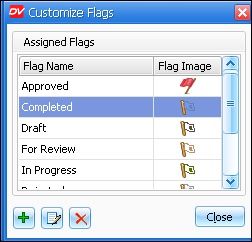
|
Customize a flag
|
 Note: Note:
| • | The flag name and flag image has to be unique. Once the name and image is assigned for a particular flag, you would not be able to assign it again. |
|
To edit a flag
You can change the flag name and image for any flag.
| • | Right click and point to Flag, select Customize... |
| • | The Customize Flag would list the Assigned Flags. |
| • | Select the flag to edit. |
| • | Click on the Edit button. You can do any one of the following: |
| ▪ | In the Flag Name box, you can edit the name. |
| ▪ | In the Flag image list, select a new flag image, and then click Save. |
Note:
| • | If this flag is flagged to any item, you will see that a new flag image has appeared for that item in the list view panel. |
| • | You can also monitor the actions that occurs on the flag that has been assigned by you on a file from the Audit tab in the Properties dialog box. |
|
To delete a flag
| • | Right click and point to Flag, select Customize... |
| • | The Customize Flag would list the Assigned Flags. |
| • | Select the flag to delete and then click on Delete button |
| • | The flag gets deleted from the list. |
 Warning: Warning:
| • | If the flag is delete, it will be cleared from all the associated items. |
|
Page url:
http://www.docsvault.com/online-help/small-business/index.html?customize_flags.html
|


